Skip to content

Blog

10 Reasons to Switch from BibTeX to BibLaTeX

Creating LaTeX documents is a challenge that goes hand in hand with choosing a suitable reference management system, much like choosing the right tool. BibTeX, a long-established option, has proven to be a reliable companion. The resilient natbib is also a good choice. Another contender in this field is BibLaTeX. This blog post lists ten reasons some users favor BibLaTeX over other reference management systems, especially BibTeX.

BibLaTeX’s comprehensive support for Unicode sets the stage for handling bibliographic data in various languages and scripts. Whether citing sources in English, Chinese, or Arabic, BibLaTeX ensures that your bibliography remains inclusive and accurate.

\documentclass{article}
\usepackage[utf8]{inputenc}
\usepackage[style=authoryear]{biblatex}
\addbibresource{yourbibfile.bib}
\begin{document}
\cite{englishSource, chineseSource, arabicSource}
\printbibliography
\end{document}

2. Advanced Sorting with Unicode Collation Algorithm + CLDR Tailoring:

Section titled “2. Advanced Sorting with Unicode Collation Algorithm + CLDR Tailoring:”

Bid farewell to the limitations of traditional sorting mechanisms. BibLaTeX’s advanced sorting capabilities, leveraging the Unicode Collation Algorithm and CLDR tailoring, provide a more refined and culturally sensitive approach to organizing your bibliography.

\documentclass{article}
\usepackage[style=authoryear]{biblatex}
\addbibresource{yourbibfile.bib}
\begin{document}
\cite{source1, source2, source3}
\printbibliography
\end{document}

3. On-the-Fly Data Modification with LaTeX Macros:

Section titled “3. On-the-Fly Data Modification with LaTeX Macros:”

Flexibility is critical, and BibLaTeX delivers. With on-the-fly data modification using LaTeX macros, you can tailor your bibliographic data to match your specific formatting needs without altering the sources.

\documentclass{article}
\usepackage[style=authoryear]{biblatex}
\addbibresource{yourbibfile.bib}
\begin{document}
\cite{source1, source2, source3}
\fullcite{source1}
\printbibliography
\end{document}

4. Multiple Bibliographies and Lists in the Same Document:

Section titled “4. Multiple Bibliographies and Lists in the Same Document:”

BibLaTeX enables you to create multiple bibliographies within a single document, each with unique sorting criteria. This feature proves invaluable when subdividing bibliographies or presenting different lists of bibliographic information in one comprehensive document.

\documentclass{article}
\usepackage[style=authoryear]{biblatex}
\addbibresource{yourbibfile.bib}
\begin{document}
\section{Section 1}
\cite{source1, source2}
\printbibliography[heading=subbibliography,title={Section 1 Bibliography}]
\section{Section 2}
\cite{source3, source4}
\printbibliography[heading=subbibliography,title={Section 2 Bibliography}]
\end{document}

No more constraints imposed by predefined entry types. BibLaTeX’s highly customizable data model allows you to define your bibliographic data types, accommodating specialized information that might not fit within the standard BibTeX entry types.

6. Support for Additional Entry Types and Fields (e.g., @online):

Section titled “6. Support for Additional Entry Types and Fields (e.g., @online):”

Enter the digital age with ease. BibLaTeX introduces new entry types like @online, designed explicitly for citing online resources. This expansion allows for a more accurate representation of the diverse sources encountered in modern research.

@online{website,
author = {Author},
title = {Title},
year = {2022},
url = {https://example.com},
urldate = {2022-01-21},
}

BibLaTeX’s support for custom fields empowers users to include additional metadata, enhancing the depth and clarity of bibliographic information. Perfect for researchers dealing with unconventional or highly specialized sources.

@book{custombook,
author = {Author},
title = {Title},
year = {2022},
publisher = {Publisher},
customfield = {Additional information},
}

Bid farewell to encoding headaches. BibLaTeX automatically handles bibliography data recoding, seamlessly converting between different character encodings and ensuring consistency in your document.

Embrace the convenience of fetching bibliographic information from remote data sources. BibLaTeX supports the integration of online databases, providing access to a wealth of up-to-date and extensive bibliographic data.

coming soon

10. Automatic Name and Name List Disambiguation System:

Section titled “10. Automatic Name and Name List Disambiguation System:”
\documentclass{article}
\usepackage[style=authoryear]{biblatex}
\addbibresource{yourbibfile.bib}
\begin{document}
\cite{author1, author2, author3}
\printbibliography
\end{document}

Let BibLaTeX do the heavy lifting regarding disambiguating names and name lists. Its sophisticated system ensures clarity and accuracy in your citations, eliminating potential sources of confusion.

Conclusion: Switching from BibTeX to BibLaTeX represents a leap forward in bibliography management within LaTeX documents. The features outlined above demonstrate BibLaTeX’s commitment to modernity, flexibility, and adaptability to the evolving needs of researchers and writers. Consider exploring BibLaTeX for a more robust and customizable bibliographic experience in your LaTeX documents.
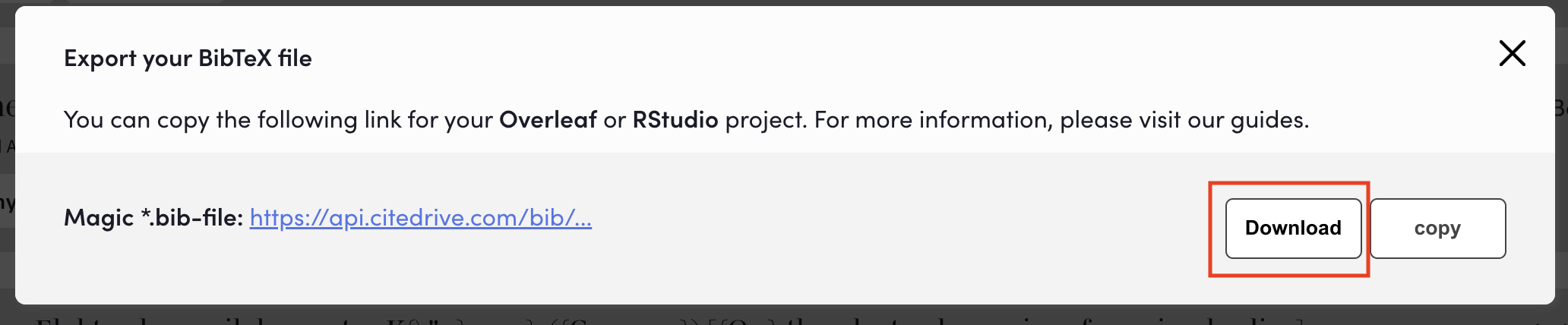
Magic .bib-file Version Two: Enhanced Functionalities for Synchronizing .bib Files with Overleaf and RStudio

We are excited to inform you that we have implemented some thrilling improvements to the dynamic .bib file used for synchronization with Overleaf and RStudio. These updates enable a more user-friendly formatting and offer additional features for seamless work in LaTeX and Markdown offline.

New Download Prompt and Formatting of the .bib file

Section titled “New Download Prompt and Formatting of the .bib file”

You can now download the .bib file directly from your project. When you open the URL, the link prompts your browser to download the .bib file in a well-formatted, easy-to-read form rather than as an opaque block of BibTeX information.

New Download Prompt and Formatting of the .bib file

Support for Synchronization between CiteDrive and Overleaf

Section titled “Support for Synchronization between CiteDrive and Overleaf”

Our platform continues to support the synchronization of your bibliographies between different projects on CiteDrive and Overleaf using the URL. This makes it easier to work on multiple projects efficiently and ensures consistency in your bibliographic data.

See our blog posts on Overleaf.com:

Integration with RStudio for R Markdown and Quarto

Section titled “Integration with RStudio for R Markdown and Quarto”

These improvements are not limited to Overleaf but also seamlessly work with RStudio. You can define the .bib file directly in your R Markdown or Quarto project, whether in the YAML file or the script.

Shell Script Support for Maximum Flexibility

Section titled “Shell Script Support for Maximum Flexibility”

The enhanced .bib file can now be effortlessly integrated into shell scripts, allowing easy use in various scenarios and workflows.

#!/bin/bash
# URL to your Bibfile
URL="https://api.citedrive.com/.../bibfile.bib"
# Retrieve the content from the URL
# ... and save it as bibliography.bib
curl "$URL" > "./bibliography.bib"
echo "The file bibliography.bib has been updated!"

Providing a download version of our .bib file allows you to work independently of an internet connection. This is particularly useful for users of offline LaTeX editors like VS Code, as it provides a seamless experience by allowing you to download and use the bibliography file directly in your local workspace. This is especially practical when you are on the go or working in locations without a stable internet connection.

We hope that these enhancements make your work more accessible, and we look forward to your feedback, as always, at hello@citedrive.com. Stay creative and productive!

Using the keywords Field in BibTeX for Effective Tagging and Filtering in CiteDrive

Adding Keywords to CiteDrive References in Bibtex

Section titled “Adding Keywords to CiteDrive References in Bibtex”

To enrich your references in CiteDrive and enhance their searchability, you can add keywords or tags directly to your bibtex entries. This can be done using the keywords field. Here’s how:

@article{your_reference_id,
title = {Your Article Title},
author = {Author, A. and Author, B.},
year = {2023},
journal = {Journal Name},
keywords = {tag1, tag2, ...}
}

Replace your_reference_id, Your Article Title, and other placeholder information with your actual reference details. Add as many keywords as you want, separated by commas.


Once you’ve added keywords to your bibtex entries in CiteDrive, you can effortlessly filter your references and search results based on these keywords. This makes finding and organizing your references a breeze.

Example Video:


Why We Use the keywords Field as a Way to Add Tags

Section titled “Why We Use the keywords Field as a Way to Add Tags”

The decision to use the keywords field in CiteDrive as a method for tagging wasn’t arbitrary. Our main considerations were:

  1. Filtered Bibliographies with BibLaTeX: By harnessing the keywords field, users can easily produce bibliographies in BibLaTeX filtered by specific criteria. This proves invaluable for researchers and writers wanting to segment references based on distinct themes or subjects.
  2. Consistency Across Programs: Ensuring a homogeneous .bib file is essential, especially for those employing multiple reference management tools. By leveraging the keywords field, CiteDrive makes sure that your .bib file remains consistent, whether you’re using it alone or alongside tools like JabRef.

Our choice to use the keywords field for tagging stems from our commitment to delivering a versatile and user-friendly experience on CiteDrive.

CiteDrive is your go-to solution for online literature management. If you’re unfamiliar with what it offers, here’s a brief rundown:

  • BibTeX Format: CiteDrive primarily uses the BibTeX format, which is the standard for literature databases in LaTeX environments. This makes it compatible with LaTeX editors like Overleaf, TeXShop, TeXmaker, and TeXstudio. Furthermore, it’s also in tune with Markdown editors such as RStudio (R Markdown/ Quarto), zettlr, obsidian.md, VS Code, Atom, and Typora.
  • Project-Based Organization: With CiteDrive, you can organize your literature based on projects. This feature is excellent for those who have various writings in progress, be it essays, papers, books, or other academic works.
  • Collaborative Features: Available as a browser app, CiteDrive enables users to invite peers to their projects. This collaboration feature ensures that teams can create, maintain, and provide feedback on a shared literature database effectively.
  • Direct BibTeX Support: CiteDrive isn’t just about compatibility; it directly supports BibTeX. This backing ensures users have access to unique types, fields, citation keys, extensions, and even alternatives like BibLaTeX, Natbib, and Jurabib.
  • Expansive Database: On CiteDrive, you’re never short of resources. The platform provides access to a vast array of articles and books, all available and ready to be added in the BibTeX format.
  • Browser Extensions: For those who frequently find resources online, CiteDrive’s browser extensions for Chrome, Edge, and Firefox are invaluable. With a single click, save articles, web pages, or blog posts as a BibTeX bookmark.
  • Integration with Overleaf: One of CiteDrive’s standout features is its seamless integration with Overleaf. Users can easily filter and insert references (BibTeX entries) into their Overleaf projects. Plus, any changes made in CiteDrive get auto-synchronized with Overleaf, ensuring that your references are always up-to-date.

For anyone serious about literature management, especially in the academic realm, CiteDrive is a must-have tool.

Integrating CiteDrive's 'Magic' .bib with Desktop Applications

CiteDrive is widely recognized for its magic-bib-file, a cornerstone in modern, user-friendly, and collaborative web-based reference management with a prime emphasis on BibTeX and BibLaTeX. Whether capturing articles and webpages with our browser extension or delving into our vast database with over 100 million articles and books searchable via ISBN, our “Magic bib-file” is tailored to automatically synchronize every BibTeX entry with Overleaf — be it a new addition, an update, a deletion, or an alteration made by a team colleague.

However, many aren’t aware that our Magic-Bibfile pairs exceptionally well with desktop applications, including LaTeX editors such as VS Code, TeXmaker, LyX, TeXstudio, Texifier, TeXmacs. It’s also compatible with Markdown-centric environments like RStudio (R Markdown & Quarto), Zettlr, Obsidian, and many others. Let’s dive into how you can transition from CiteDrive to your local project seamlessly using a one-time project setup and a straightforward pipeline.

Terminal window
curl "https://api.citedrive.com/.../bibfile.bib"

Use the curl command to display the latest content: curl ‘YOUR Bibfile URL’. Below is how it appears in the macOS terminal:

Remember, you can directly copy the URL of your Bibfile from your project. When employing curl, ensure the URL is enclosed in double quotes “”.

You can harness this content across various scripts, like Python or, as shown below, in bash:

#!/bin/bash
# URL to your Bibfile
URL="https://api.citedrive.com/.../bibfile.bib"
# Retrieve the content from the URL
# ... and save it as bibliography.bib
curl "$URL" > "./bibliography.bib"
echo "The file bibliography.bib has been updated!"

Suppose this file resides in our project folder. Here’s a snapshot:

Terminal window
MyProject/
├── main.tex
├── bibliography.bib
└── get_bib.sh # Script to refresh the bibliography.bib

A straightforward terminal command will refresh your CiteDrive project’s latest version in the “bibliography.bib” file.

Terminal window
chmod +x get_bib.sh

And there you have it! An equally simple method to transfer the most recent state of your BibTeX references to your desktop.

CiteDrive is a complimentary online tool for BibTeX literature management, bolstered by LaTeX and Markdown editors such as Overleaf, TeXShop, RStudio, and beyond. It fosters project-based organization, promotes collaboration, and operates browser-based. Supporting diverse BibTeX variants, including BibLaTeX and Natbib, it boasts a vast literary database. Extensions for browsers like Chrome, Edge, and Firefox simplify web content saving, and it integrates effortlessly with Overleaf, reflecting changes in real-time.

Managing Citations and Bibliographies with BibLaTeX using Overleaf

In academic writing, citations and bibliographies play a crucial role in presenting a comprehensive and well-researched paper. With the advent of digital tools, managing citations and bibliographies has become significantly easier than before. In this blog post, we will discuss how to manage citations and bibliographies with BibLaTeX using Overleaf, a popular online LaTeX editor.

BibLaTeX is a LaTeX package that provides advanced bibliographic facilities for processing bibliographies. It is a powerful tool for managing citations, bibliographies, and references. BibLaTeX works with BibTeX files, which are databases of references in a specific format. BibLaTeX allows the user to create customized citation and bibliography styles and supports a wide range of citation styles.

Overleaf is a web-based LaTeX editor that allows users to create, edit and share LaTeX documents online. It has a built-in compiler that can generate PDFs from LaTeX code. Overleaf is a collaborative tool that allows multiple users to work on the same document simultaneously. It has several features that make it popular among researchers and students, including templates, automatic compilation, and integration with other tools such as Git and Zotero.

Managing Citations and Bibliographies with BibLaTeX using Overleaf

Section titled “Managing Citations and Bibliographies with BibLaTeX using Overleaf”

To manage citations and bibliographies with BibLaTeX using Overleaf, follow these steps:

Log in to your Overleaf account and click on the “New Project” button. Choose the template that best suits your requirements. For this blog post, we will be using the “LaTeX Article” template.

In the preamble section of your LaTeX document, add the following lines to load the BibLaTeX package:

\usepackage[style=authoryear, backend=biber]{biblatex}
\addbibresource{bibliography.bib}

The style option specifies the citation style, and the backend option specifies the BibTeX engine to be used. The addbibresource command specifies the location of the BibTeX file that contains the references.

Step 3: Add References to the Bibliography File

Section titled “Step 3: Add References to the Bibliography File”

Create a new file called bibliography.bib and add the references to the file. The format of the BibTeX entries may vary depending on the type of reference. Here is an example of a book reference:

@book{example,
author = {John Doe},
title = {The Book Title},
publisher = {The Publisher},
year = {2021},
}

To cite a reference in your document, use the \cite{} command and specify the citation key of the reference. For example:

According to \cite{example}, the world is round.

This will generate a citation in the text as “(Doe, 2021)” and add an entry to the bibliography at the end of the document.

To generate the bibliography, add the following line at the end of your document:

\printbibliography

This will generate a list of references in the specified citation style.

In conclusion, managing citations and bibliographies with BibLaTeX using Overleaf is a straightforward process. By following the steps outlined in this blog post, you can easily manage your references and create customized citation styles. Overleaf provides an excellent platform for collaborative writing and can make the process of academic writing much more efficient. With these tools at your disposal, you can focus on the content of your paper and leave the