Skip to content

Blog

CodeMirror 6: A New Source Editor for Overleaf

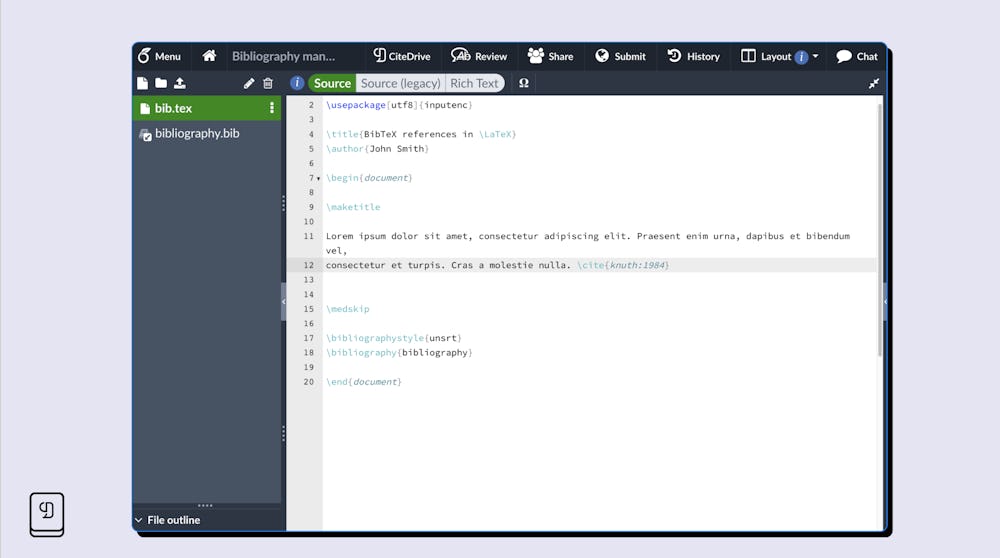
Good news, Overleaf users! After several weeks of beta testing, the new source editor (CodeMirror 6) is now available to power Overleaf. This new editor is more modern and supports a wide range of features that the old one did not. Be sure to read Overleaf’s latest update in their blog!

CiteDrive is a BibTeX-based platform designed to make referencing and bibliography management easy. With CiteDrive, you can organize your references and team collaboration in projects, sync everything seamlessly to Overleaf or RStudio, and much more. The CiteDrive Companion is an extension available to Google Chrome, Microsoft Edge, and Mozilla Firefox, which allows you to manage your CiteDrive projects without having to switch any window or tab in your browser and has been optimized for the new source editor. While in the beta phase, we have ensured that optimization works for both the new and old versions of the editor. So, yes! CiteDrive is fully compatible with the new editor.

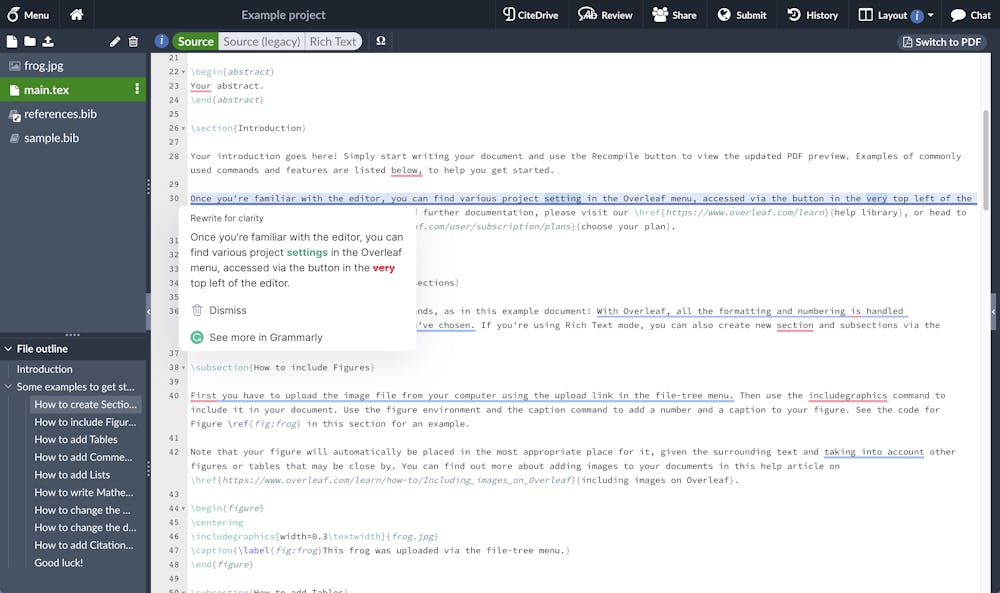
Grammarly is an AI-powered writing assistant that will help you to write mistake-free in any text editor. Now, Grammarly also works with Overleaf’s new source editor! The integration is seamless and allows you to get spelling and grammar suggestions from Grammarly as you type in the code editor, ensuring your essay is error-free.

What are some other benefits of the new code editor?

Section titled “What are some other benefits of the new code editor?”

CodeMirror 6 has become an industry standard for code-based editors, used by some of the most popular editor applications. CiteDrive users edit their BibTeX entries using the same framework. Compared to its predecessor, it will bring improvements and better behavior on mobile devices (tablets, phones), improved code highlighting and error control, more robust behavior while writing in non-Latin languages, and many more features.

With the new source editor, we hope that you can now enjoy a better writing experience with Overleaf!
CiteDrive for Bibliography Management in RStudio: Easily Insert References into Quarto Documents

Do you need to insert citations into your Quarto documents? If so, then you’ll want to check out CiteDrive for RStudio. With CiteDrive, you can easily manage your bibliography and insert references into your documents. In this tutorial, we’ll show you how to get started.

We’ll walk you through the steps of setting up a CiteDrive account and importing references into RStudio. Then we’ll show you how to insert citations into a Quarto document. Let’s get started!

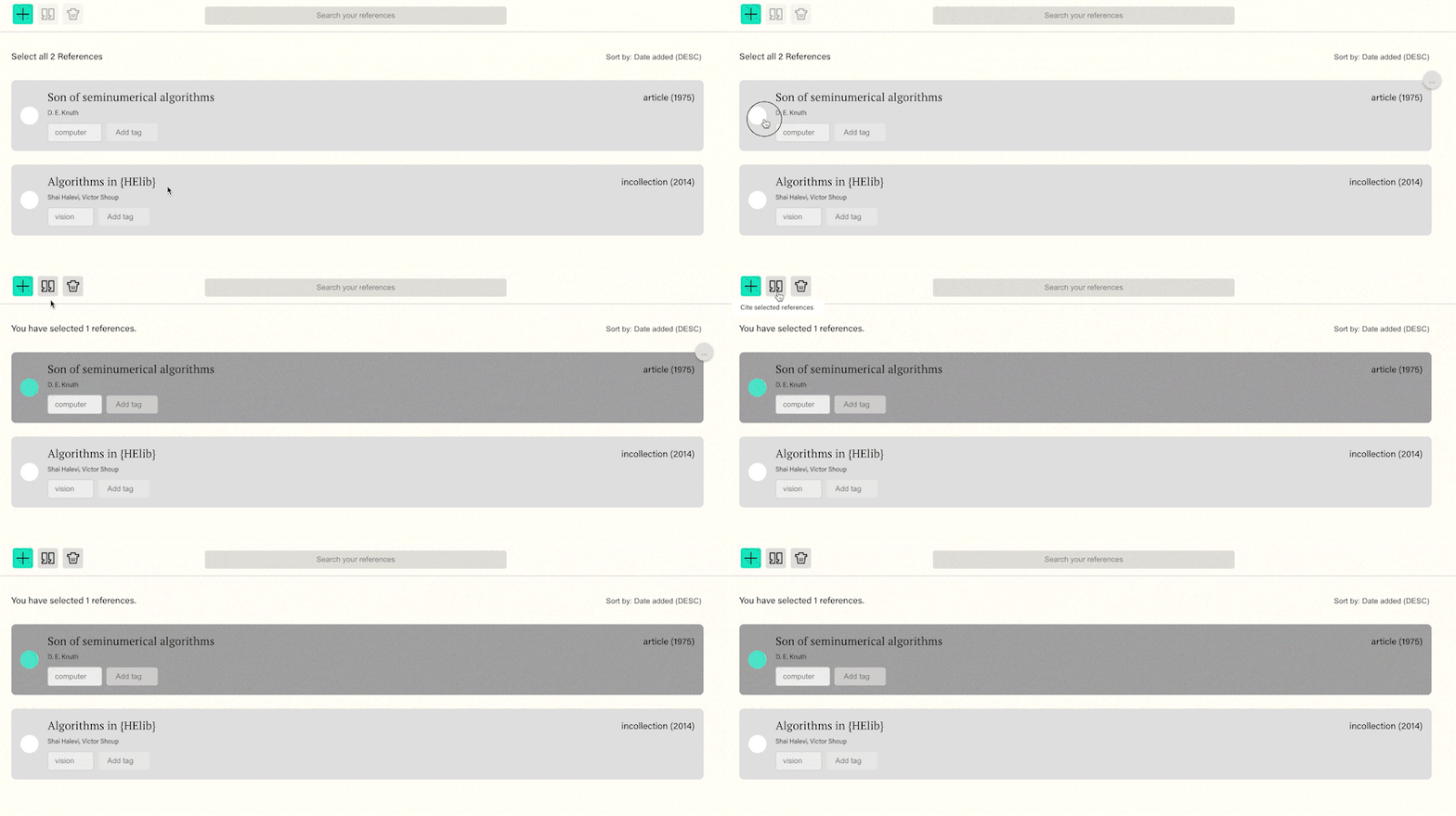
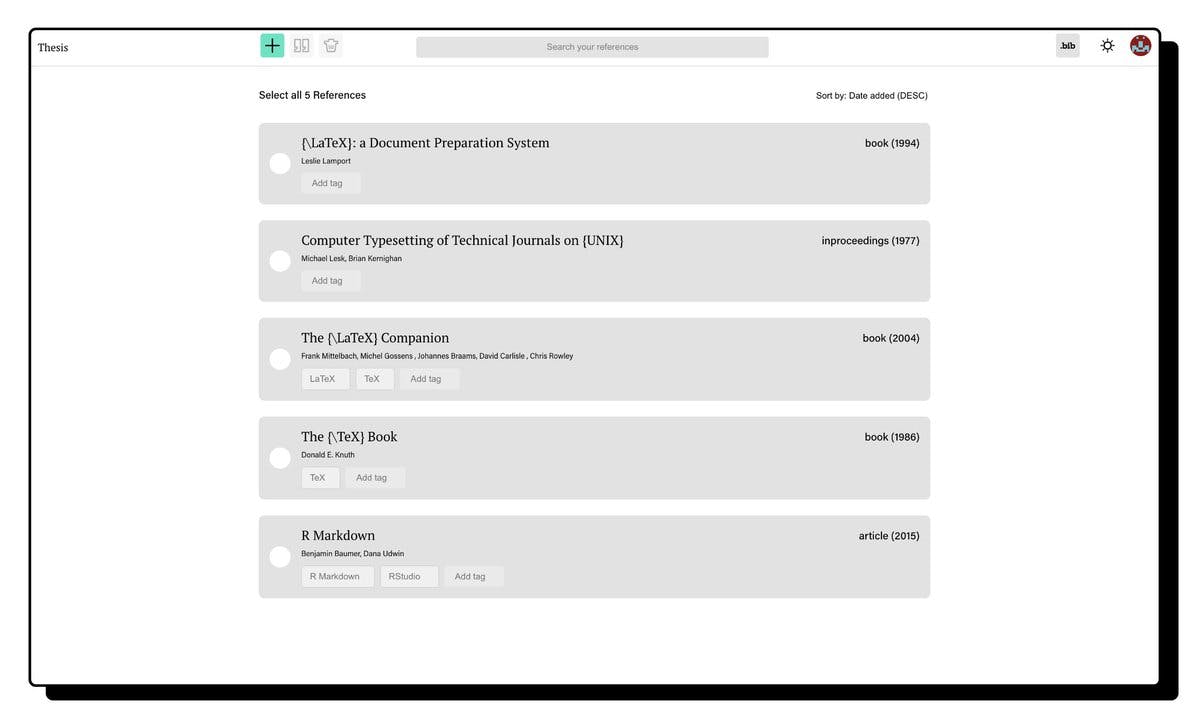
First, you’ll need to create a CiteDrive account. You can do this by going to the CiteDrive website and clicking on the “Sign Up” button. Once you’ve completed your account, you’ll be able to create an “R-Markdown” project, give it a name and fill your project with references. Your project could look like this:

Step 2: Synchronize your Quarto document with CiteDrive

Section titled “Step 2: Synchronize your Quarto document with CiteDrive”

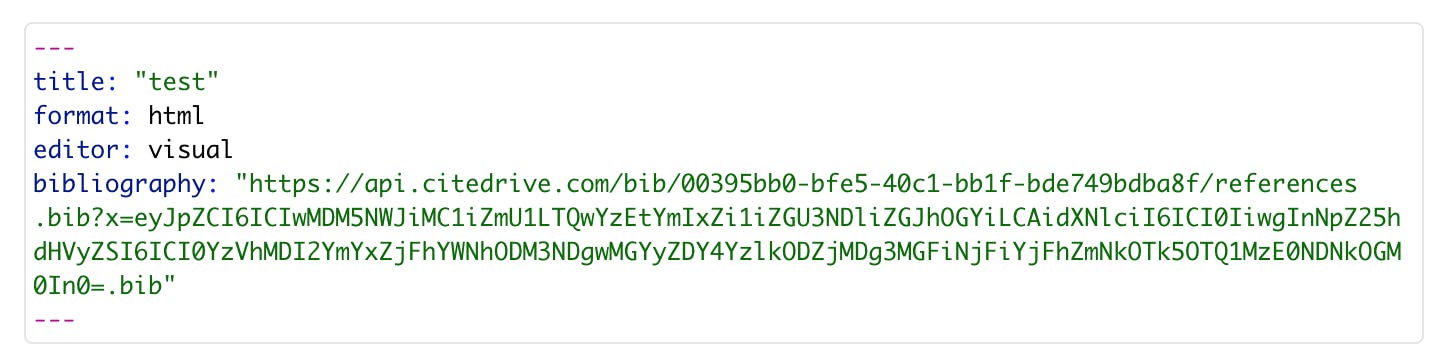
Now let’s get your new CiteDrive hooked up with your Quarto document. To do this, simply click the “bib” button, which will open up a new tab window containing all your entries in BibTeX format. Copy the URL of the new tab and paste it into the YAML of your QMD file.

Once your references are imported, you can insert them into your Quarto document. To do this, return to your CiteDrive project and one or more references your want to insert into your document and click the cite button. CiteDrive will copy the citation key to your clipboard.

Back to your Quarto document and paste your citation key in the desired passage.

After you insert the key to the corresponding section, click “render.” The in-text citation will be outputted in your desired style, and the reference will appear at the end of your document.

So there you have it! With CiteDrive, you can easily manage your bibliography and insert citations into your Quarto documents. Give it a try today and see how it can make your life easier.

Grammarly Works with Overleaf's Latest Source Editor Upgrade

If you’re looking for a great way to improve your writing, Grammarly is the perfect tool for you! Grammarly is a grammar-checking tool that helps you find and correct mistakes in your writing. It’s available as a plugin for several different word processors, including Microsoft Word and Google Docs. And now, it also works with Overleaf’s latest Source Editor Upgrade!

Test

Overleaf is a popular online LaTeX* editor that makes it easy to create and collaborate on scientific documents. Many tools are already available to simplify working with Overleaf, such as literature management programs like BibTeX-empowered CiteDrive, a platform-based, collaborative citation management system that can auto-generate and -maintain bibliographies for your Overleaf projects.

Another great tool to add to your Overleaf workflow is Writefull, an AI-driven writing aid that offers feedback on your work and aids you in writing, rephrasing, copyediting, and more. The latest upgrade to the Overleaf Source Editor includes Grammarly support, so you can now check your LaTeX documents for grammar mistakes! Simply install the Grammarly plugin and start using it with Overleaf.

If you’re a Grammarly user, be sure to try out the Grammarly plugin for Overleaf! And if you’re new to Grammarly, sign up for a free account today and start improving your writing. Grammarly can help you make sure your LaTeX documents are error-free, so you can focus on the content of your paper.

*If you’re unfamiliar with LaTeX, it’s a typesetting system used by many scientists and mathematicians. It’s especially well-suited for creating complex documents like papers and books.

How to Use Overleaf to Dual-Monitor Your PDF and Code: the PDF detach!

The brand new function available on Overleaf will open up a world of possibilities for your document management: the PDF detach!

Test

Do you have a dual monitor set-up? If so, you’re in luck! As of 15 June 2022, Overleaf has a detach feature that allows you to view your pdf on one monitor while your code is on the other. This can be really helpful when you are trying to debug your code. In this Overleaf tip, we will show you how to use overleaf in order to dual-monitor your pdf and code.

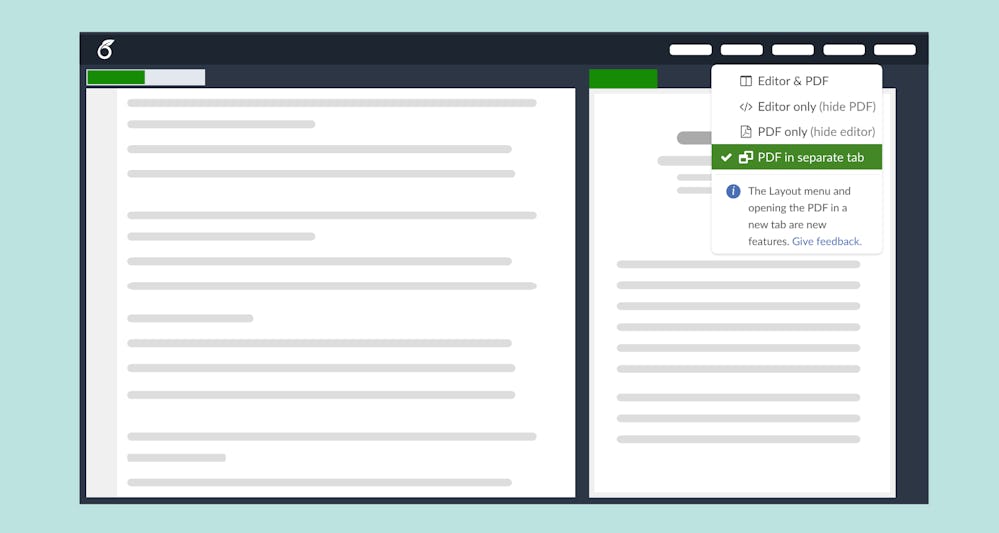
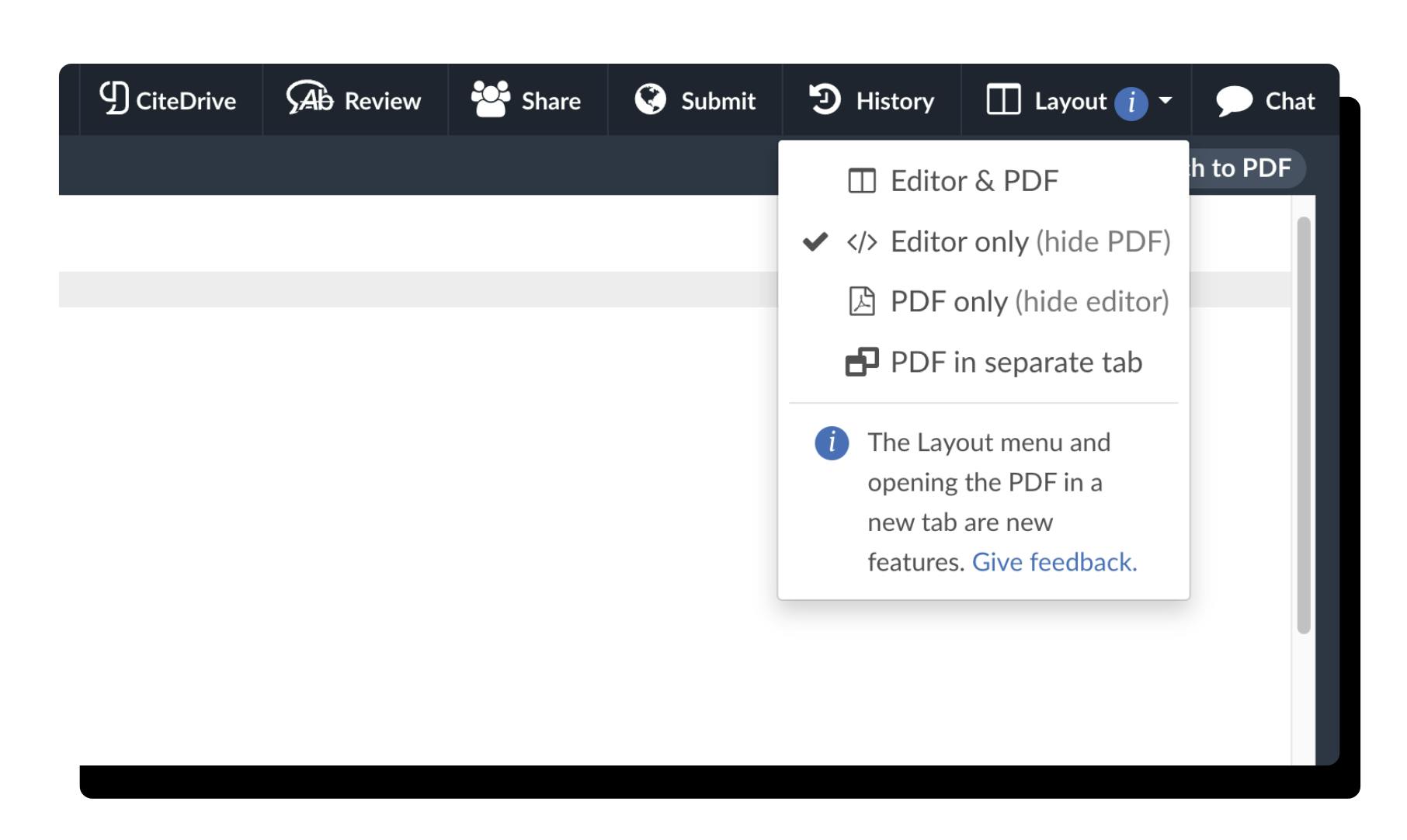
After opening a project, you will notice the new layout menu in the top bar, which allows you to display the source code editor view and the PDF viewer together or separately. You can also use the “PDF in a separate tap” option for your second monitor.

Now, whenever you compile your code, the pdf will automatically be displayed on the selected monitor. This can be really helpful when trying to debug your code and see what is going on.

This tip is brought to you by CiteDrive, a collaborative BibTeX-first reference management tool for the web with a free Overleaf add-on that allows you to insert citations and bibliographies into your Overleaf projects with one click. Check it out at: https://www.overleaf.com/blog/citedrive-easy-reference-management-for-overleaf.

We think the PDF detach feature will be helpful to all users (available from both free and premium plans), opening new possibilities besides dual monitor and presentations when sharing your screen in a conference call.

If you have any questions, feel free to reach out to us at hello@citedrive.com. We’re always happy to help! Happy coding!

Overleaf Source Editor Upgrade

Overleaf is currently rebuilding its source editor, and CiteDrive will adapt its extension to work with the new environment. This means that you’ll be able to manage your BibTeX references in the new editor as well.

Test

The new source editor is accessible to anyone who has joined the Beta program. You may try out the new editor by going to https://www.overleaf.com/beta/participate (or coming here from the Account Settings page) and checking the “Opt-In to Beta Program.”

After that, you will see a three-way switch that allows you to change between “Source,” “Source (legacy),” and “Rich Text” when opening any project on Overleaf. We have adjusted all changes accordingly, and the CiteDrive extension will work for both the new source editor while still available for the old one. We have delivered the new code to all supported browsers - waiting for the browser platforms to confirm.

Another change will be the position of the CiteDrive button above the Overleaf project. The extension to CiteDrive will no longer be accessible via “insert citation.” Instead, we have added a CiteDrive button in the top toolbar on the right. See the following image:

This change is due to two factors: We know the CiteDrive companion conflicts with the popular browser extension Writefull when both are used simultaneously in Overleaf. For this reason - and because of future functions that deepen the integration of CiteDrive / Overleaf, we will include a general CiteDrive button in the next version.

We’ll notify you as soon as we release updates to our browser plugin. In the meantime, you can continue using our extension in the legacy source editor.