
Getting started
Welcome to our guide! Here, we explain the key concepts behind CiteDrive. For more detailed explanations of BibTeX and BibLaTeX, please refer to bibtex.eu.
Why CiteDrive?
Section titled “Why CiteDrive?”CiteDrive is a tool for creating modular bibliographies and citations based on BibTeX and BibLaTeX. Unlike most reference management software, CiteDrive is designed exclusively for use with these formats. This means that projects do not need to be “exported” to BibTeX first—a process that often results in faulty .bib files and prevents the use of BibLaTeX-specific entry types and fields.
In CiteDrive, each project is an independent, collaboratively usable .bib file. It is enhanced with core reference management features as well as several convenience functions and can be linked to LaTeX and Markdown editors via a unique URL. Supported tools include, among others, Overleaf, RStudio, Quarto, and MonsterWriter. For local use, projects can also be downloaded.
Projects
Section titled “Projects”BibTeX is designed so that only cited entries are included in a document’s bibliography. In principle, it therefore does not matter whether—or how many—irrelevant entries are contained in the referenced .bib file. However, as the file grows larger, a number of issues tend to arise, including:
- Long compilation times
- Merge conflicts when collaborating via Git
- Frequent careless mistakes (inconsistent citation keys, duplicate entries, etc.) caused by cognitive overload
With CiteDrive, you can instead create project-specific, flexible, and collaborative bibliographies.
- Short compilation times thanks to project-based
.bibfiles - Collaborative management without the need to use Git
- Fewer careless mistakes due to a clear UI and automated assistance for conflict prevention
For example, if a duplicate entry is accidentally added, CiteDrive automatically appends a suffix to the citation key. Thus, citekey becomes citekey-2.
New Project
Section titled “New Project”After logging in, you will initially be taken to the project overview. To create a new project, click New Project in the top-left corner. Give your project a name and then click Create Project.
Copying a Project
Section titled “Copying a Project”In the project’s context menu, click Copy Project. Optionally, assign a new name to the project; otherwise, the suffix -copy will be added automatically.
Copying projects can be very useful, for example, for:
- a series of publications
- a collaborative project with a large number of entries
The project is copied with all its entries, keywords, and groups, but without its users.
Inside a Project
Section titled “Inside a Project”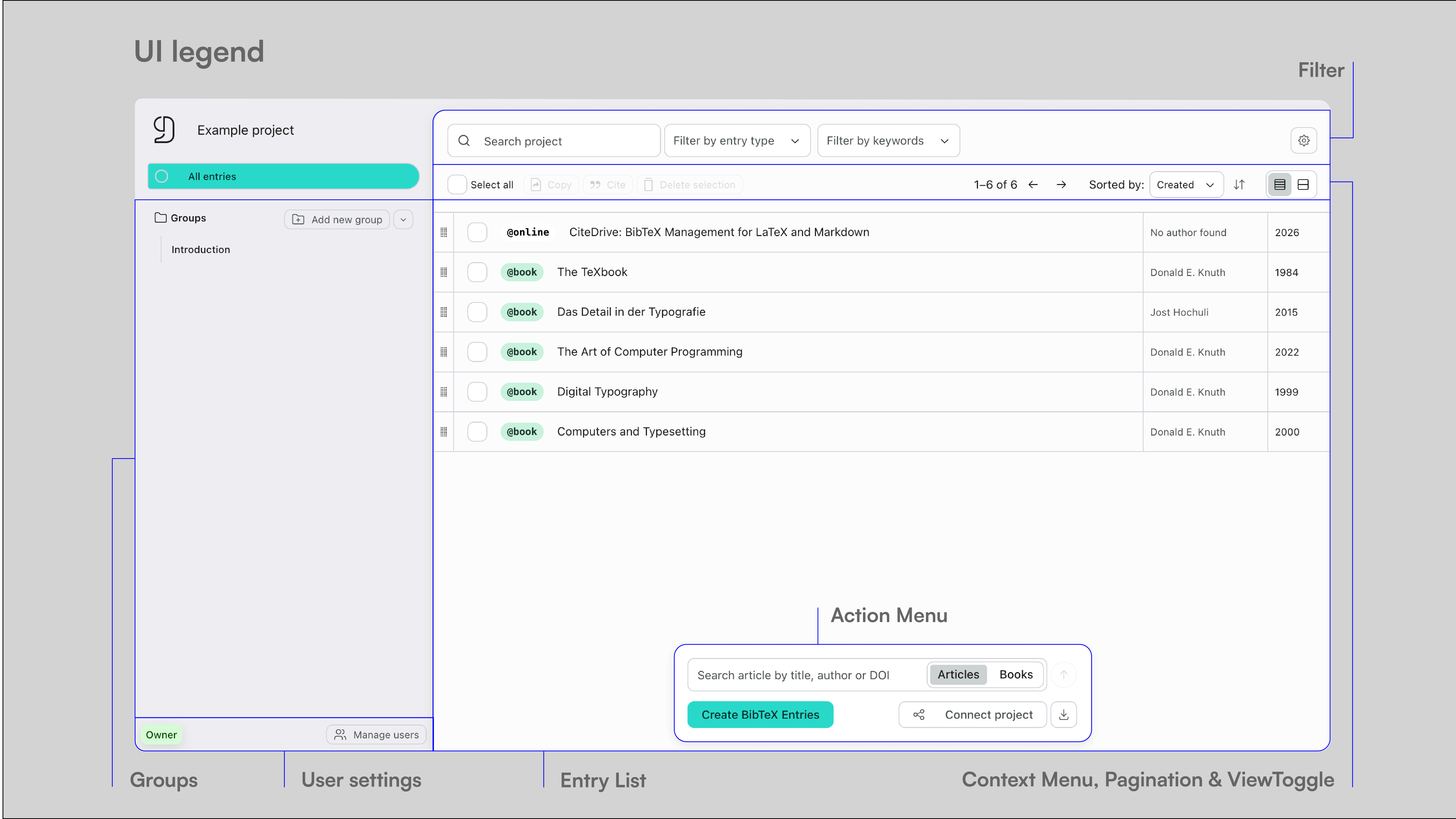
The core of a project is the Entry List. The Entry List displays the currently active selection—either all entries, the entries of a specific group, or filtered entries. The Entry List includes a context menu that allows you to cite, copy, delete, or remove selected entries from groups.
To the right of the context menu, you will find the sorting controls, the view toggle, and pagination. CiteDrive displays 50 entries per page.
Directly above the Entry List are the project search and filtering mechanisms (entry types and keywords).
To add entries and connect your project to external tools, use the options in the Action Menu. In the left column, you can create groups for your project and manage its users.
Connecting to an Editor
Section titled “Connecting to an Editor”Each project generates a unique URL that can be used to connect it to editors such as Overleaf or RStudio and access it there as a .bib file. Click Connect Project in the Action Menu to view your project’s URL.
Overleaf
Section titled “Overleaf”- Copy the project URL
- In Overleaf, go to File → New File → From External URL
- Paste the URL and name the file, for example
bibliography.bib - Any changes made in CiteDrive by you or your team will be reflected in Overleaf after refreshing the
.bibfile
RStudio & Quarto
Section titled “RStudio & Quarto”- Copy the project URL
- Paste it into the YAML header of your project:
---bibliography: "https://app.citedrive.com/your-project-url"---The bibliography is generated automatically when rendering the document.
Adding Entries
Section titled “Adding Entries”To add entries to your projects, you can use the options in the Action Menu located at the bottom of the Entry List, as well as our official browser extension. It is also possible to copy selected entries to other projects via the context menu.
Using the Action Menu, you can manually add entries and search for articles and books in various databases.
Manual Entry
Section titled “Manual Entry”To add an entry manually, click Create BibTeX Entries in the Action Menu. This opens the Entry Editor, which has two modes: Code Editor and Form. By default, the Code Editor is opened.
One advantage of the Code Editor over the Form view is that it allows you to add multiple entries at once. In addition, it is optimized for writing Bib(La)TeX entries and highlights syntax errors, among other issues.
Start your entry with @, and a complete list of all available entry types will be displayed.
Importing Entries
Section titled “Importing Entries”You can import multiple existing entries by pasting the code of several entries into the Code Editor and then saving.
Searching Online Databases
Section titled “Searching Online Databases”Enter a search term (title or author, DOI, or ISBN) into the input field of the Action Menu. Then select the search context (articles or books) and start the search by clicking the icon.
Choose the desired search result, edit the entry if necessary, and then click Add to Project in the bottom-right corner.
Using the Browser Extension
Section titled “Using the Browser Extension”With CiteDrive’s browser extension “BibTeX Connect”, you can add entries directly to your CiteDrive projects from sources such as PubMed, arXiv, Google Scholar, and general websites.
The extension is currently available for:
- Google Chrome
- Microsoft Edge
Log in to the extension using your CiteDrive credentials. Select the project to which the entry (article, website, etc.) should be added, review and edit the entry if necessary, and then add it to your project.
Copying Entries into Other Projects
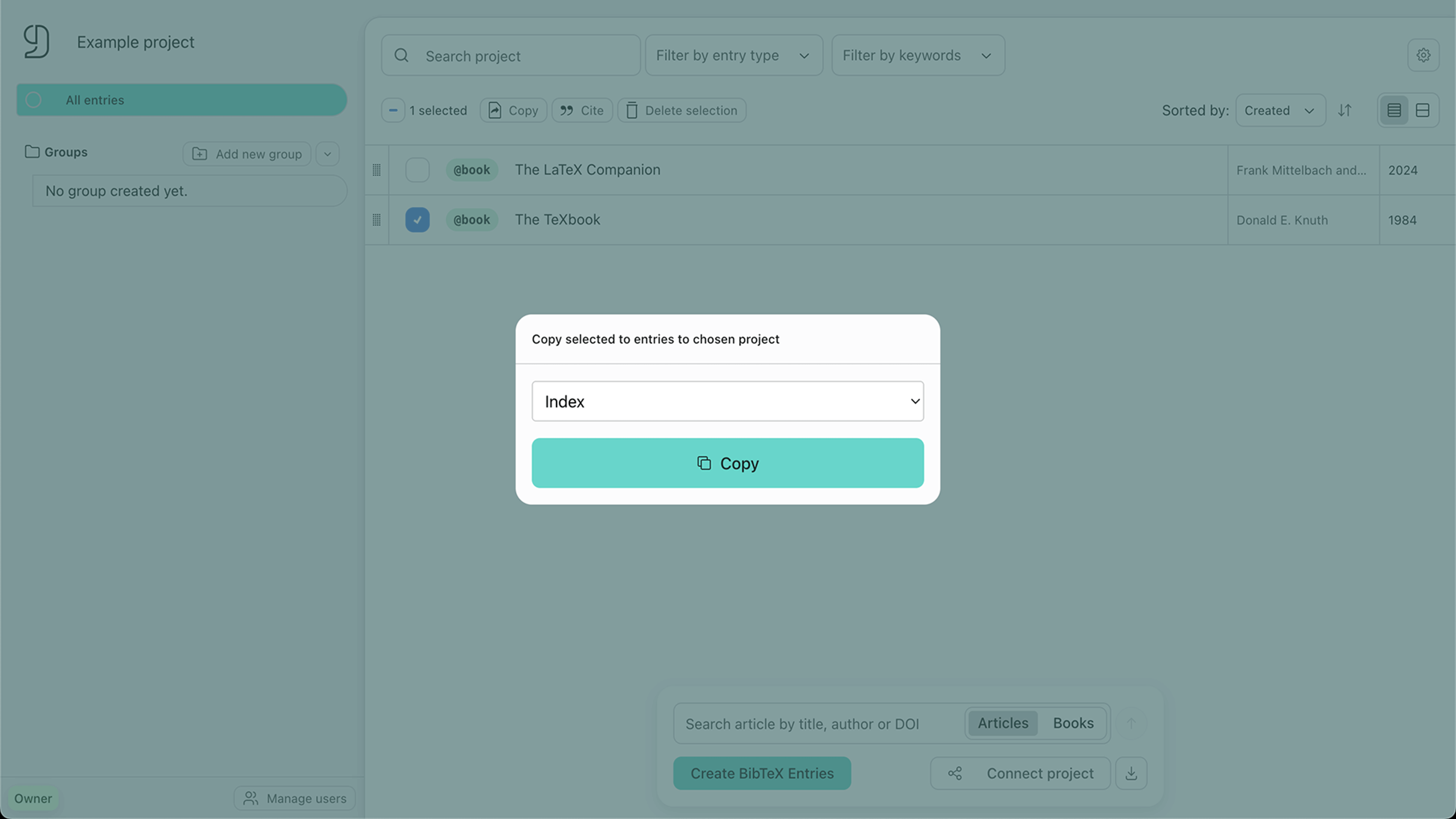
Section titled “Copying Entries into Other Projects”Select the entries you want to copy to another project and then click Copy in the context menu. Choose the target project and click Copy again.
Copied entries are independent of the originals. This means that changes made to the original entry do not affect the copy, and vice versa.
Managing Entries
Section titled “Managing Entries”CiteDrive provides several mechanisms to help you manage and organize your entries, including search, filters, groups, and view modes.
Editing Entries
Section titled “Editing Entries”To edit an entry, click on it in the Entry List. The Entry Editor opens on the right-hand side. To save your changes, click Save Entry in the bottom-right corner.
By clicking the icon in the top-right corner, you can center the Entry Editor.
Searching Entries in Your Project
Section titled “Searching Entries in Your Project”To search for entries within your project, use the search bar above the Entry List. By default, the search covers the following entry fields:
- Author
- Title
- Year / Date
Search results are displayed as entries in the Entry List. Click the icon in the search bar to clear and exit the search.
Note: Searches are context-sensitive. If you search while a group and/or a filter is active, only that context (for example, the active group) will be searched.
Filtering Entries
Section titled “Filtering Entries”You can filter your entries using the filtering mechanisms above the Entry List:
- Entry types
- Keywords
To filter by keywords, your entries must include a keywords field. Add it in the Entry Editor and enter the desired keywords as a comma-separated list, or use the Form view.
@book{knuth2000, title = {Computers and Typesetting}, author = {Knuth, Donald E.}, year = {2000}, publisher = {Addison-Wesley Professional}, ... keywords = {Typography, TeX},}You can then filter your entries by their respective keywords. To do so, select one or more keywords from the select menu above the Entry List, or click on a keyword in the expanded view.
Note on keyword filtering: If you select multiple keywords, CiteDrive currently combines them using AND logic. This means that only entries containing all selected keywords are displayed. OR logic will be added in a future version.
Groups
Section titled “Groups”Groups help you organize entries within a project. For example, you can represent different chapters of your work or separate thematic areas.
To create a group, click Add New Group in the left-hand column. Enter a name for the group and confirm by pressing the Enter key.
To add entries to a group, select them in the Entry List and drag them onto the desired group. Release to add the entries to that group.
You can rename a group at any time.
View Modes
Section titled “View Modes”CiteDrive offers two different views for the Entry List: Simple View and Expanded View. You can switch between them by clicking the View Toggle located above the Entry List on the right-hand side.
- Simple View: Displays only the most important information for each entry (type, author, title, year).
- Expanded View: In addition to the fields shown in Simple View, this view also displays the keywords of each entry. You can click on a keyword to filter the Entry List by that keyword. The full title of each entry is also shown.
Creating Citations
Section titled “Creating Citations”To create citations from your project, select the desired entries in the Entry List and click Cite in the context menu. CiteDrive generates a citation command using the corresponding citation key.
Copy the command and insert it into your document.
Currently, CiteDrive can generate citation commands for BibTeX, BibLaTeX, and Markdown. You can also generate a single citation command for multiple entries at once.
Citation Key
Section titled “Citation Key”The citation key (citekey) is a unique identifier for each entry in your .bib file. By default, CiteDrive generates citation keys in the author–year–title format.
Click Overwrite Citation Key to regenerate the citation key.
Citation keys for imported entries or entries added via database search or the browser extension can be overwritten in the same way.
Collaboration
Section titled “Collaboration”Each project can be shared and edited collaboratively by multiple users. The permissions available to each user depend on their assigned role.
User Roles
Section titled “User Roles”There are four different roles in CiteDrive:
- Owner – The creator of the project. Has full permissions, including the ability to delete the project and manage users.
- Admin – Can add, edit, and delete entries, and manage users.
- Editor – Can add, edit, and delete entries.
- Viewer – Can view the project only.
Adding Users
Section titled “Adding Users”To add new users to your project, click Manage Users in the left-hand column. Enter the email address of the user you want to invite.
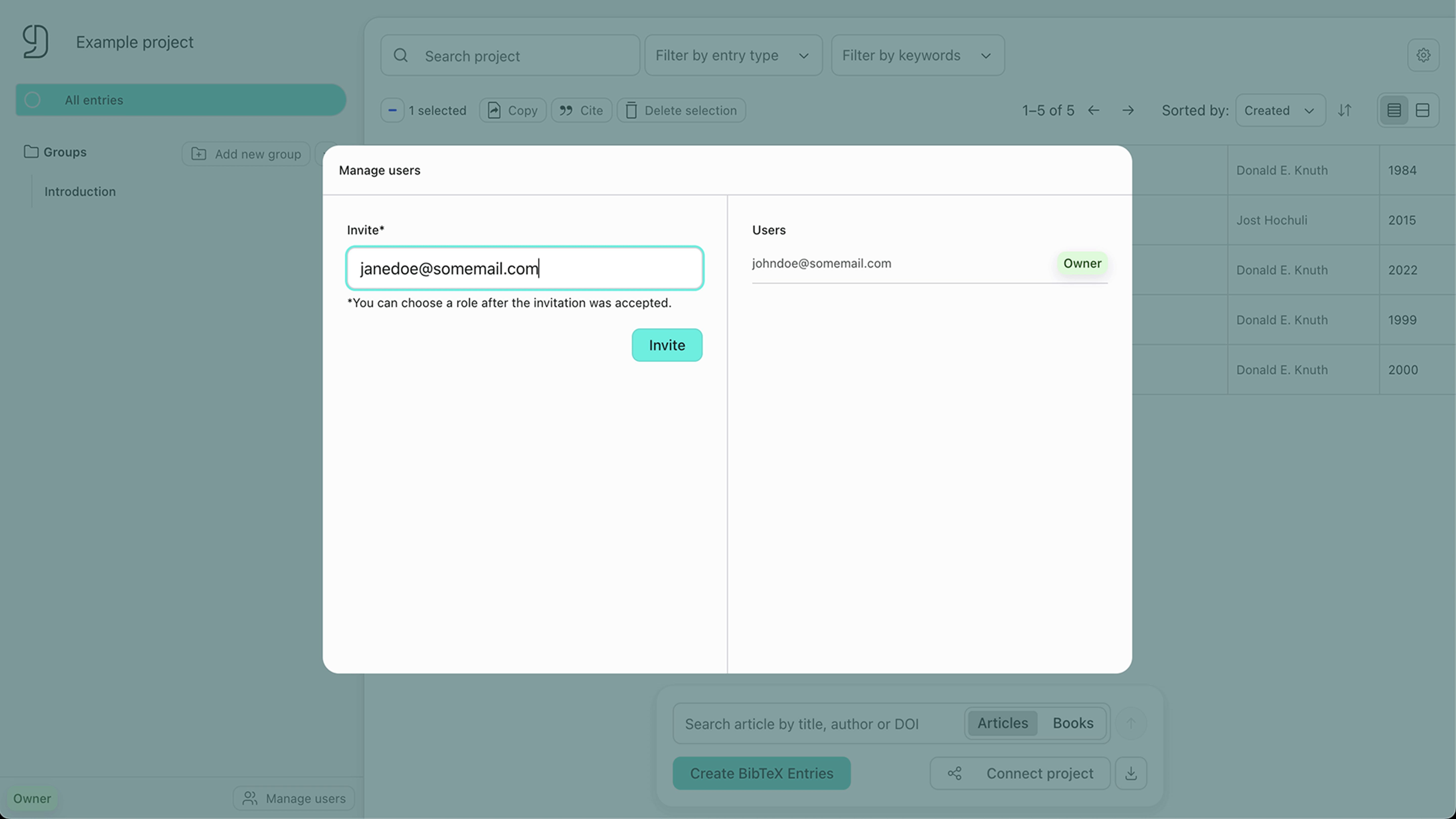
Once the user has accepted the invitation, you can assign them a role. The invitation is sent to the user via email.